Does AmberTime upload anything?
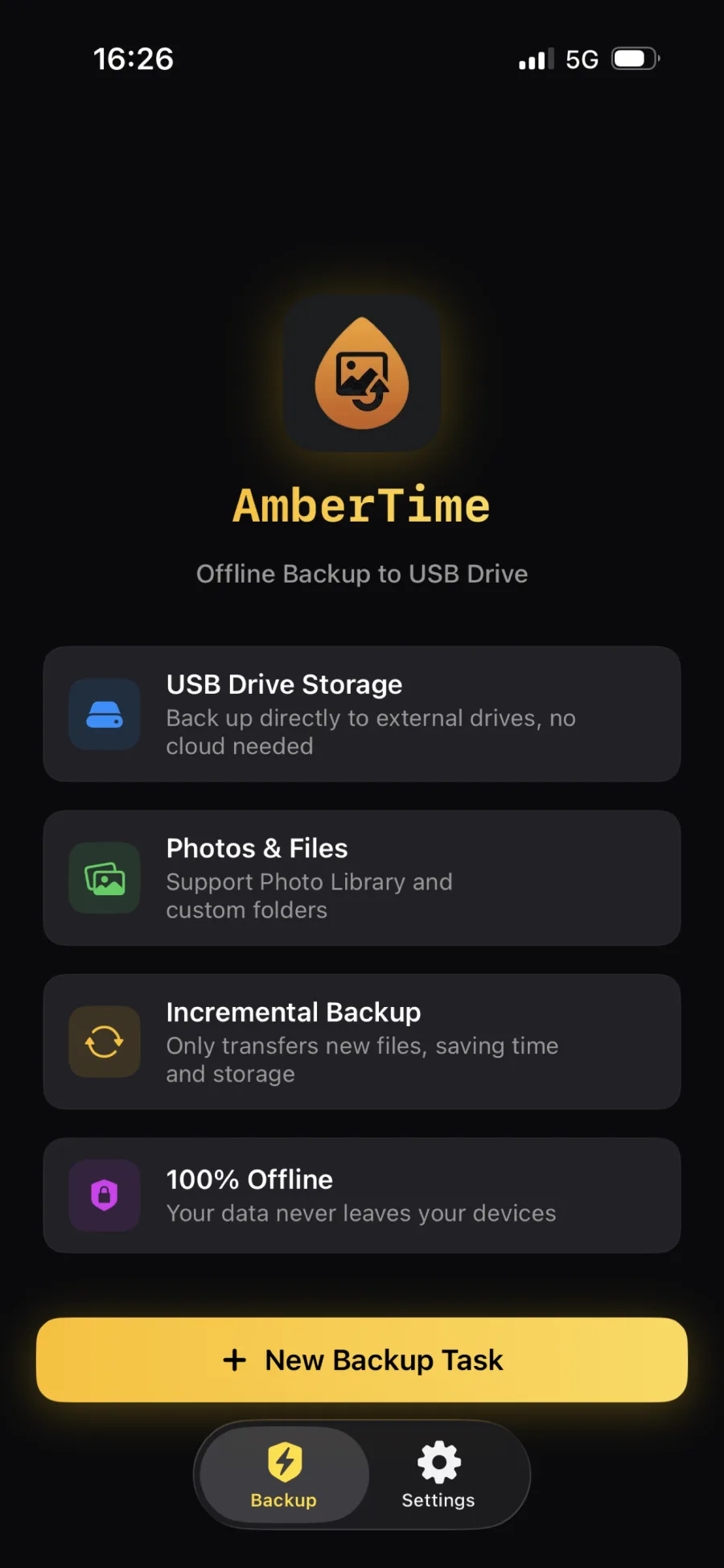
No. AmberTime does not upload your files to AmberTime servers, does not require an AmberTime account, and does not use analytics trackers. Backup data goes from your iPhone to the USB drive you choose.
Can AmberTime work with iCloud photos?
Yes. If "Optimize iPhone Storage" leaves originals in iCloud, AmberTime can download the full-resolution file from Apple before writing it to your USB drive. That download needs network access, but the backup is still written locally to your drive. Read the full iCloud-only guide →
Can I back up iPhone photos to an external SSD without iCloud?
Yes. If the originals are already on your iPhone, AmberTime can write them directly to the selected USB drive or external SSD. If some originals are only in iCloud because Optimize iPhone Storage is enabled, AmberTime can fetch those originals from Apple first before writing them locally.
Do I need a Mac to back up iPhone photos to USB?
No. Create a task, connect an external drive through Files, and run the backup on the iPhone. The drive can later be opened from Finder, Explorer, Linux, or AmberTime's archive browser. See the step-by-step walkthrough →
Does AmberTime work on iPad?
Yes. AmberTime 1.2.0 runs natively on iPad with a sidebar and detail layout, keyboard shortcuts, and Split View support. A USB-C iPad connects to the drive directly, and the lifetime Pro unlock covers both iPhone and iPad. See the iPad walkthrough →
Can I back up only old photos, like everything before 2024?
Yes. AmberTime 1.1.0 supports Photo Library date-range backup tasks, so you can archive everything before a chosen date — or one year at a time — directly to a USB drive or external SSD, with nothing deleted from your iPhone. See how to archive old photos →
Can I back up only new iPhone photos after the first backup?
Yes. Each task keeps its backup record on the current device. Later runs compare the selected source with that record and skip items already recorded as completed for that task.
Can I back up folders outside of Photos?
Yes. Besides Photo Library, AmberTime can back up custom folders exposed through the iOS Files app. Create separate tasks for DJI footage, camera imports, downloaded media, and project folders.
What USB drives and external SSDs work with AmberTime?
AmberTime works with external storage that iOS exposes through Files, including many USB-C SSDs and flash drives. APFS, exFAT, and FAT32 are supported; FAT32 has a 4 GB single-file limit. Pick the right filesystem →
Does AmberTime delete anything from my iPhone after backup?
No. AmberTime backs up files to your drive. It does not delete your Photo Library or source folders after backup.
Does incremental backup update edits or mirror deletions?
AmberTime skips Photo Library items recorded as completed for the same task. Editing an already-backed-up photo does not trigger a fresh export. Deleting a source item does not delete its drive copy. Files folder changes use file attributes, and same-size edits may be skipped; this is not versioned or mirror backup. See backup behavior and limitations →
Can I continue an existing backup after reinstalling AmberTime or changing iPhone?
Backup task records are stored on the current device. A fresh install, a new task, or another device does not automatically import that state from the drive. Existing files may be reused when the expected path and size match, but this is not content verification or shared cross-device backup history. See backup behavior and limitations →
Can iPhone backup continue while locked or using another app?
AmberTime requests limited background time when you switch apps or lock the screen. iOS decides how much time is available; uninterrupted background backup is not guaranteed. If iOS pauses the task, return to AmberTime and start it manually. Completed items are skipped and the interrupted file restarts from the beginning. Keep large backups in the foreground. See backup behavior and limitations →
What happens if the cable disconnects mid-backup?
Reconnect the drive and run the task again. Items recorded as completed are skipped; an unfinished file restarts from the beginning, not from its last byte. Writes use temporary .part files before finalization. Cleanup is best effort, so a disconnect or forced quit may leave a .part file; it is discarded before retrying that file. Troubleshoot detection problems →
Is the backup really the original file?
AmberTime writes the original PhotoKit resources where available, preserves timestamps, and keeps Live Photos as paired resources. There is no compression step or format conversion in the backup pipeline. More on Live Photos as paired HEIC + MOV →
Does AmberTime preserve Live Photos?
Yes. AmberTime backs up Live Photos as paired photo and video resources, usually HEIC plus MOV, where those resources are available through iOS.
Can I open the backup on a Mac or Windows PC?
Yes. AmberTime writes regular files and folders to the drive. The archive can be opened on a Mac, Windows PC, Linux computer, or in AmberTime's archive browser.
Is AmberTime a cloud backup app?
No. AmberTime is a local physical archive tool, not a cloud backup service. It does not provide AmberTime cloud storage or upload your files to AmberTime servers.
Can AmberTime handle large photo libraries and ProRes videos?
Yes. The transfer engine streams files in small chunks, so large ProRes videos and big photo libraries are copied without loading a full file into memory.